You’ve created the same Instagram post three times this month. Or written that proposal from scratch again. Or rebuilt a slide deck you know you made before.
The files exist somewhere. You just can’t find them when you need them.
A template library fixes this. It’s a central place where your best work lives, ready to reuse. No more searching through folders or recreating what you already built. Just grab, customize, and go.
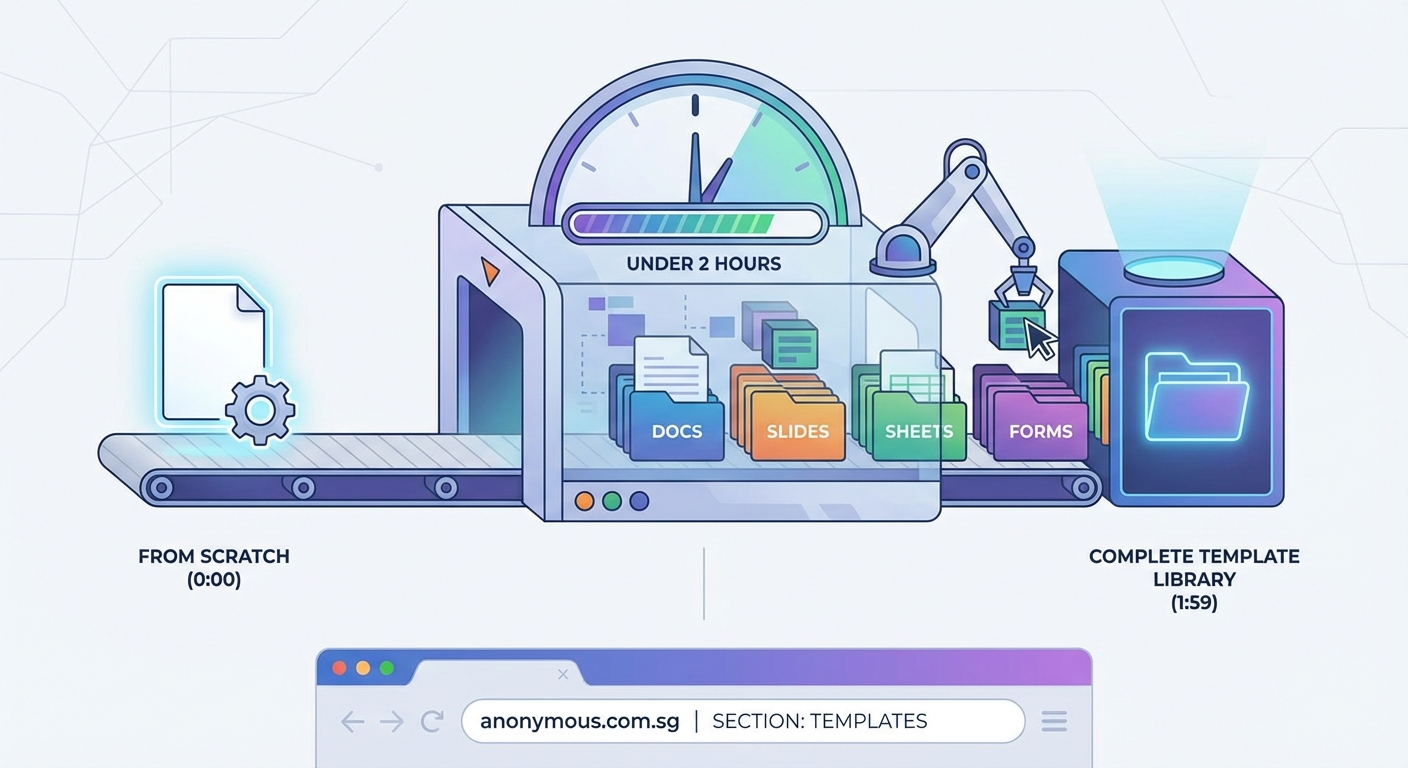
Building a template library takes less than two hours and saves countless hours every week. Start by auditing what you already create repeatedly, then organize templates by project type in a single accessible location. Add clear naming conventions and basic usage notes so anyone on your team can find and use templates without asking questions or starting from scratch.
Why most template collections fail
Most people already have templates. They’re just scattered everywhere.
One lives in your downloads folder. Another sits in an old project file. Three more hide in different cloud drives. You have the assets, but no system.
The problem isn’t creating templates. It’s organizing them so you actually use them.
A real template library needs three things: a single location, consistent naming, and context for each file. Without these, you’re back to searching or rebuilding.
Start with what you already make

Before creating anything new, look at what you’ve produced in the past month.
Open your recent files. Check your sent emails. Review your published work. You’ll spot patterns fast.
These patterns are your template opportunities:
- Social media posts in the same format
- Proposals with similar structures
- Email sequences you send to new clients
- Reports that follow the same layout
- Presentations with recurring slide types
Write down every repeated format you find. Don’t build templates yet. Just list them.
This audit tells you exactly what to prioritize. If you write three pitch emails per week, that template saves more time than one you’d use monthly.
Pick one central location
Your library needs a home everyone can access.
The best location depends on your tools and team size. Solo creators might use a folder in their design software. Teams need shared cloud storage.
Good options include:
- Notion or Coda databases with embedded files
- Google Drive or Dropbox with clear folder structure
- Design tool libraries (Figma, Canva, Adobe)
- Project management tools with template features
- Simple shared folders with README files
Choose based on where you already work. If you live in Google Docs, put templates there. If your team uses Figma daily, build your library inside it.
The wrong choice is splitting templates across multiple platforms. Pick one home and commit to it.
Create your folder structure
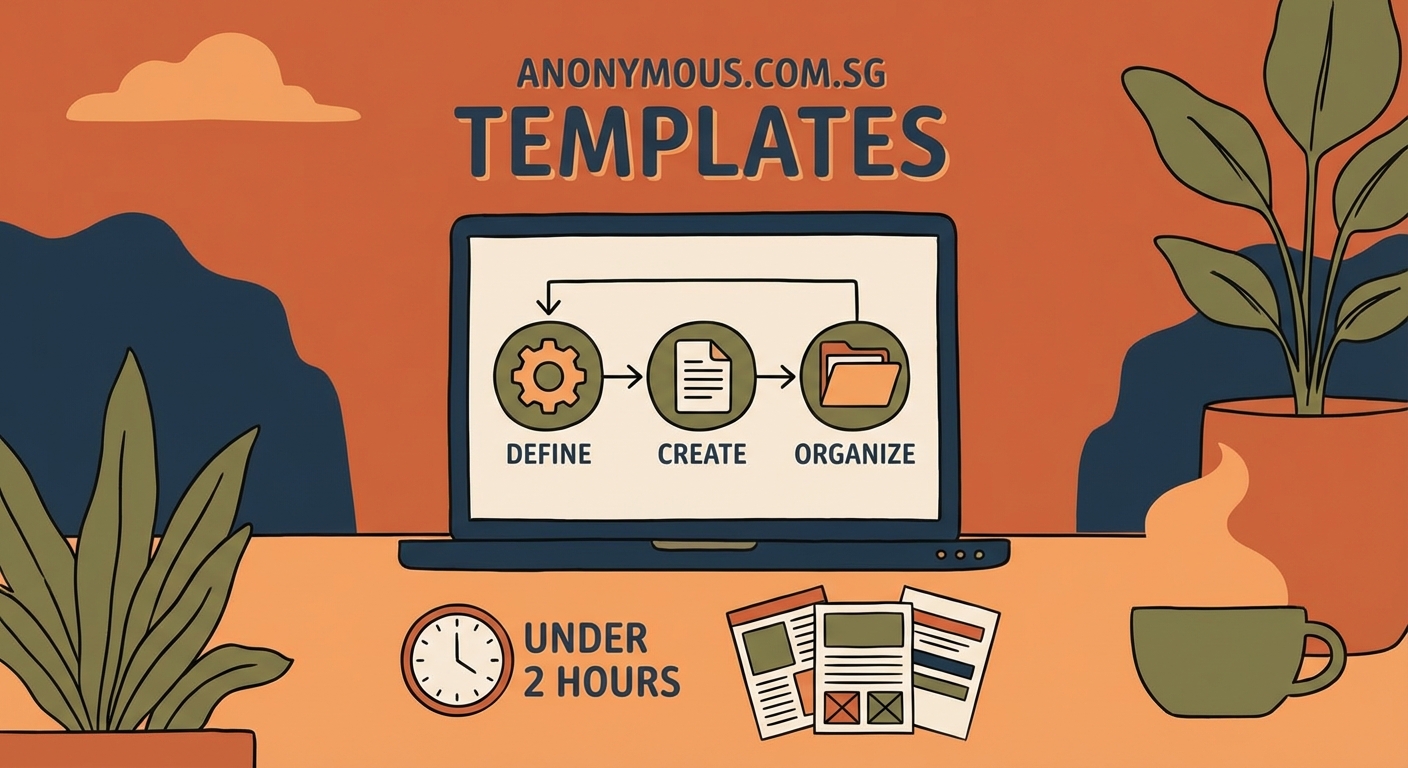
Organization makes or breaks a template library.
Start with broad categories based on project type, not file format. Think “client proposals” instead of “Word documents.”
Here’s a structure that works for most teams:
- Create top-level folders for major project types
- Add subfolders for specific formats within each type
- Include a “components” folder for reusable elements
- Keep an “archive” folder for outdated versions
Example structure:
Templates/
├── Client Communication/
│ ├── Proposals/
│ ├── Onboarding/
│ └── Reports/
├── Marketing/
│ ├── Social Media/
│ ├── Email Campaigns/
│ └── Landing Pages/
├── Internal/
│ ├── Meeting Notes/
│ ├── Project Briefs/
│ └── Reviews/
└── Components/
├── Headers/
├── Footers/
└── Color Palettes/
This structure lets you find templates in two clicks maximum.
Build your first five templates
Don’t try to template everything at once. Start with five high-impact formats.
Go back to your audit list. Pick the five things you recreate most often. These give you immediate time savings.
For each template, follow this process:
- Open your best recent example of that format
- Remove all client-specific content
- Replace it with placeholder text and clear instructions
- Add notes about when and how to use this template
- Save it with a descriptive name in your library
Make templates flexible enough for different situations but specific enough to save real work. A social media template should include your brand colors and font choices, but leave room for different messages.
“The best template is the one you actually use. Keep them simple, keep them accessible, and keep them updated based on what works.”
Name templates so anyone can find them
Bad naming kills template libraries.
“Final_v3_NEW.psd” tells you nothing. “Instagram_Carousel_Product_Launch.psd” tells you everything.
Use this naming formula: [Category]_[Type]_[Purpose]_[Version].extension
Examples:
– Social_Instagram_ProductAnnouncement_v1.fig
– Email_Welcome_NewClient_v2.html
– Proposal_ServicePackage_Standard_v1.docx
Include version numbers. When you update a template, save it as v2 and move v1 to your archive folder. This way, projects using the old version don’t break.
Add dates for time-sensitive templates: Report_Quarterly_2024Q1.xlsx
Consistent naming means you can find files by searching, even if your folder structure changes later.
Add context that saves questions
Every template needs instructions.
Create a simple README file in each main folder. Explain what each template is for, when to use it, and what to customize.
For individual templates, add context directly in the file:
- Comment boxes explaining each section
- Highlighted areas that need customization
- Links to related resources or examples
- Notes about brand guidelines or requirements
This documentation prevents the “how do I use this?” messages that slow everyone down. New team members can grab templates and go without asking.
Keep instructions brief. Three bullet points beats a paragraph every time.
Set up a simple update process
Templates need maintenance or they become outdated.
Create a quarterly review calendar. Every three months, check if your templates still match how you actually work.
During reviews, ask:
- Which templates get used most?
- Which ones never get touched?
- What new repeated formats have emerged?
- Do existing templates need updates?
Delete unused templates. If nobody touched it in six months, it’s clutter.
Update templates that work but feel outdated. Maybe your brand colors changed or you found a better layout.
Create new templates for emerging patterns. If you’ve built the same thing from scratch three times recently, it needs a template.
Common mistakes and how to avoid them
| Mistake | Why it fails | Better approach |
|---|---|---|
| Too many templates | Choice paralysis, nothing gets used | Start with 5-10 core templates |
| No usage instructions | People ask questions or use incorrectly | Add brief notes in each file |
| Complex folder structures | Can’t find anything without searching | Maximum three folder levels deep |
| Mixing drafts and templates | Confusion about what’s ready to use | Separate working files from library |
| No version control | Updates break existing projects | Always save new versions, archive old ones |
| Generic placeholder text | Unclear what needs customizing | Use specific, instructive placeholders |
The biggest mistake is perfectionism. Your library doesn’t need to be complete or beautiful. It needs to save you time this week.
Make templates easy to access
Reduce friction between needing a template and using it.
Pin your template library folder to your sidebar or bookmarks bar. If it takes five clicks to reach, you’ll skip it when you’re busy.
For frequently used templates, create even shorter paths:
- Bookmark specific template files
- Add templates to your design tool’s favorites
- Create desktop shortcuts for your top three
- Set up keyboard shortcuts if your software allows it
Some teams add a Slack channel where anyone can request or share templates. Others use a simple spreadsheet that lists all templates with direct links.
The easier templates are to grab, the more they get used.
Build reusable components
Not everything needs to be a full template.
Sometimes you need smaller pieces: a header design, a color palette, a standard footer, a signature block.
Create a components folder for these building blocks. They’re faster to make than full templates and often more useful.
Components work great for:
- Brand elements that appear across different formats
- Standard sections that fit into various templates
- Approved graphics and icons
- Preset text blocks for common messages
- Layout grids and spacing systems
Think of components as template ingredients. You combine them differently for each project, but you don’t rebuild them from scratch.
This approach pairs well with a brand style guide that defines how these pieces work together.
Train your team to actually use it
A library only works if people know it exists and how to use it.
Schedule a 15-minute walkthrough when you launch your library. Show everyone where it lives, how it’s organized, and which templates to use when.
Make the library part of your workflow:
- Add “check template library first” to project kickoff checklists
- Mention specific templates in project briefs
- Share template links in relevant Slack channels
- Update your onboarding docs to include library access
When someone creates something great, ask them to template it and add it to the library. This keeps the collection growing without extra work.
Celebrate time savings. When a template saves hours on a project, mention it. This builds the habit of checking the library first.
Scale your library as you grow
Start small, but plan for growth.
Your first library might be five templates in a folder. That’s fine. Add more as patterns emerge.
As your library grows, you’ll need:
- Better search functionality (tags, metadata)
- Preview images so people can see templates without opening them
- Usage tracking to know what works
- Contribution guidelines so quality stays consistent
- Regular audits to remove outdated content
Some teams eventually move to dedicated template management tools. But most can run on simple folder structures for years.
The key is keeping things organized as you add. Every new template should fit your existing structure and naming system.
Measure what matters
Track simple metrics to prove your library’s value.
Count how many times each template gets used monthly. This shows which ones deliver real value and which ones waste space.
Estimate time saved. If a template replaces two hours of work and gets used ten times per month, that’s 20 hours saved. That’s real money and real capacity for better work.
Ask your team what they need. A simple quarterly survey (“What templates would save you the most time?”) guides what to build next.
These numbers justify investing more time in your library. They also help you cut templates that looked good but never got used.
Your library starts today
Building a template library sounds like a big project. It’s not.
You can set up a basic library in under two hours. Pick your location, create your folder structure, and template your five most repeated formats. That’s it.
The rest happens gradually. You’ll add templates as patterns emerge. You’ll refine organization as you see what works. You’ll build components when you spot reusable pieces.
The important part is starting. Every template you create saves time the next time you need it. Every hour you spend organizing saves ten hours of searching later.
Your best work deserves to be reused, not rebuilt. Give it a home where you can actually find it.
