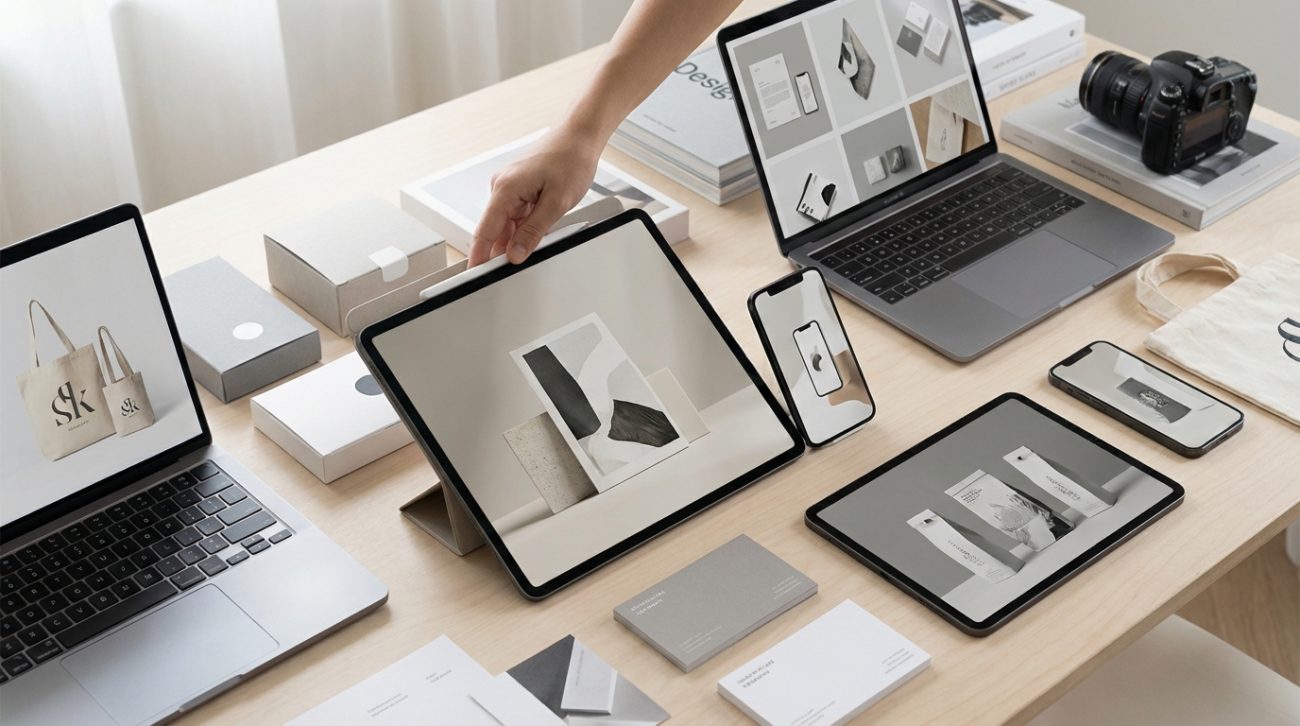
Your portfolio is the one place where your design work needs to look flawless. But hiring a photographer or buying premium mockup templates can cost hundreds of dollars you might not have right now.
The good news? You don’t need a budget to make your work look professionally shot. Free mockup templates for portfolio presentations have come a long way. They’re realistic, customizable, and available in formats that work with the tools you already use.
Free mockup templates help designers present their work in realistic, professional contexts without photography costs. The best templates offer editable smart objects, high resolution, and natural lighting. Choose mockups that match your project type, maintain consistent presentation styles across your portfolio, and always customize colors and shadows to match your design’s aesthetic for authentic results.
Why mockups matter more than raw design files
Showing a flat PNG of your app interface doesn’t tell the full story. Clients and hiring managers want to see how your work exists in the real world.
A well-chosen mockup does three things. It provides context for your design. It shows you understand how people will actually use what you’ve created. And it demonstrates attention to detail that separates professional portfolios from student projects.
Raw files make people work harder to imagine the final product. Mockups do that work for them.
What makes a portfolio mockup actually worth using
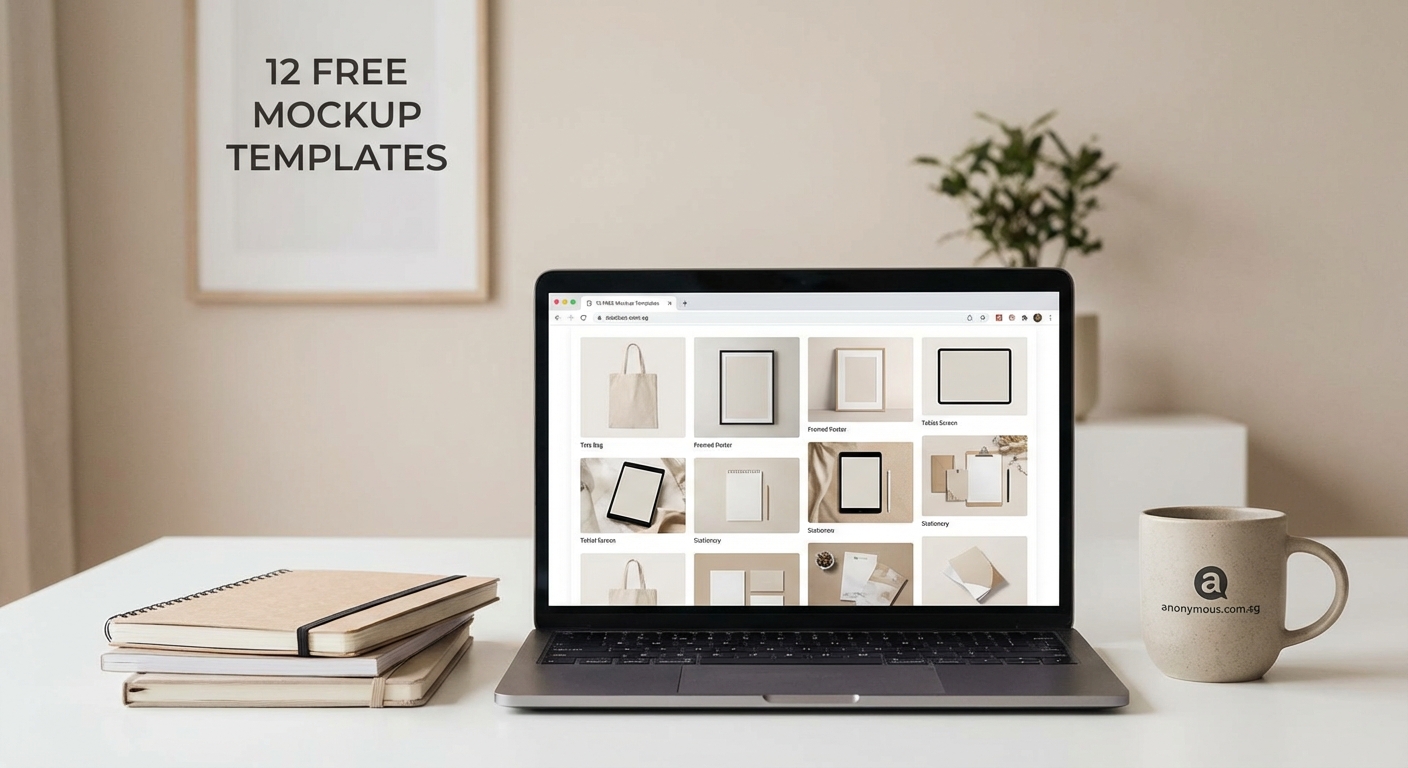
Not all free templates are created equal. Some look dated. Others come with restrictive licenses or require software you don’t own.
Here’s what separates usable mockups from time wasters:
- Editable smart objects or layers that let you drop in your design
- Resolution high enough for portfolio websites and PDF presentations
- Natural lighting and shadows that don’t look overly processed
- File formats compatible with Photoshop, Figma, or free alternatives
- Commercial use permissions clearly stated in the license
The mockup should enhance your work, not compete with it. Overly stylized templates with neon backgrounds or excessive props distract from what you’re trying to show.
Matching mockup types to your project categories
Different design work needs different presentation styles. Using a laptop mockup for a mobile app feels off. Presenting a logo on a business card makes more sense than floating it on a generic background.
| Project Type | Best Mockup Style | Why It Works |
|---|---|---|
| Mobile apps | Phone in hand or on desk | Shows scale and touch interaction |
| Websites | Browser window or laptop screen | Provides context for navigation |
| Branding | Stationery sets or product packaging | Demonstrates system consistency |
| Print design | Magazine spreads or posters in environment | Shows real-world application |
| UI components | Device frames with minimal props | Keeps focus on interface details |
Match the mockup to where your design would actually live. A restaurant menu belongs on a table, not floating in space.
How to find and download templates that fit your workflow
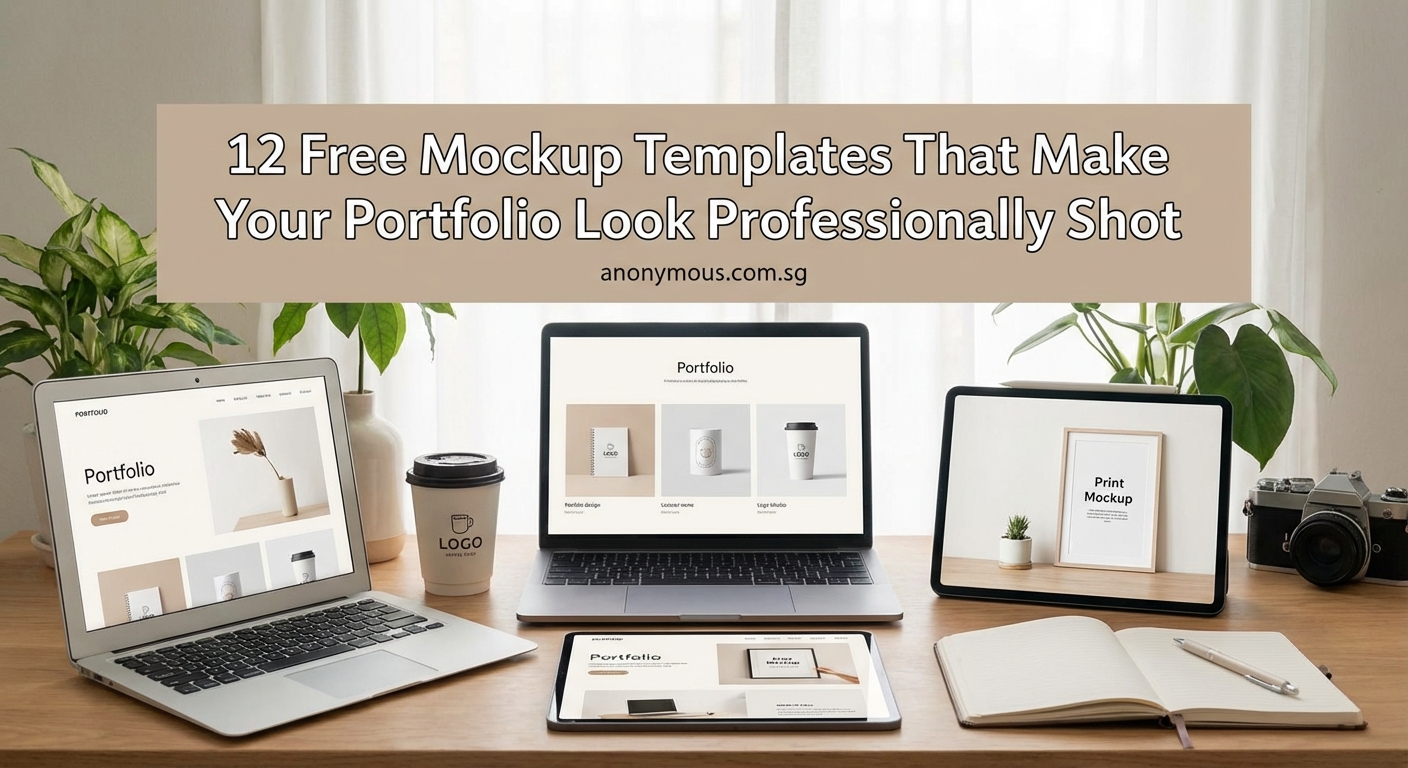
Start with sites that specialize in free design resources. Many offer mockup collections organized by category.
Look for templates in PSD format if you use Photoshop. Sketch and Figma users should search for platform-specific files. If you work in free tools like GIMP or Photopea, PSD files usually work with some minor compatibility issues.
Read the license before downloading. Most free mockups allow portfolio use, but some restrict commercial client work. Know the difference before you build your presentation around a template you can’t legally use.
Download a few options for each project type. You won’t know which works best until you see your actual design in context.
Steps to customize mockups without making them look fake
Generic mockups scream “I just dropped my design in and called it done.” Customization makes the difference between a template and a professional presentation.
- Adjust the background color to complement your design’s palette
- Modify shadow intensity to match your design’s lighting style
- Change surface colors on devices or materials to neutral tones
- Remove unnecessary props that don’t serve the presentation
- Add subtle texture or grain if the mockup looks too clean
- Export at the exact dimensions your portfolio platform requires
The best mockups become invisible. Your viewer should focus on the design work, not the presentation wrapper. If someone notices the mockup before your work, you’ve chosen wrong.
Pay special attention to shadows. Harsh, unrealistic shadows make even great designs look pasted on. Soften them or adjust opacity until they feel natural.
Common mistakes that make free mockups look cheap
Even good templates can look amateur if you use them incorrectly. These errors show up in portfolio after portfolio.
Using the same mockup for every project creates visual monotony. Variety shows you understand context. A website designer who only uses MacBook mockups misses opportunities to show responsive design on phones and tablets.
Stretching or distorting your design to fit the mockup dimensions breaks the illusion. If your design doesn’t fit naturally, choose a different template.
Leaving default colors on device frames or backgrounds makes it obvious you used a template. White iPhones work for some designs. Others need black frames or custom colors that don’t fight with your interface palette.
Ignoring resolution requirements leads to pixelated presentations. If your portfolio displays images at 2000px wide, your mockup needs to export cleanly at that size.
Maintaining consistency across your entire portfolio
Your portfolio tells a story. Wildly different mockup styles from project to project break that narrative flow.
This doesn’t mean using identical templates for everything. It means establishing a visual language for how you present work.
Choose a consistent level of realism. If you use minimal, clean mockups for one project, don’t switch to heavily textured, atmospheric presentations for the next. The shift feels jarring.
Maintain similar amounts of negative space around your mockups. Some designers prefer tight crops that fill the frame. Others use generous white space. Both work, but mixing them randomly looks unplanned.
Keep your background treatments consistent. All white, all subtle gradients, or all environmental contexts. Pick an approach and stick with it throughout your portfolio sections.
Adapting mockups for different portfolio platforms
Your portfolio might live on Behance, your personal website, and PDF case studies sent to clients. Each platform has different display requirements.
Behance displays images in a centered column. Horizontal mockups work better than vertical ones. Your design should be readable at the default zoom level without requiring clicks to enlarge.
Personal websites give you more control over layout. You can use larger images or create galleries with multiple mockup angles of the same project.
PDF portfolios need higher resolution than web presentations. Export mockups at 300 DPI if you’re printing or sending files that might be printed. Web-only presentations can use 72 DPI to keep file sizes manageable.
Test your mockups on mobile devices. Many people review portfolios on phones. If your carefully crafted presentation becomes an unreadable thumbnail on a small screen, it’s not working.
Combining multiple mockups to tell a complete story
Single mockups show one moment. Sequences show how your design works across touchpoints.
A branding project benefits from showing the logo on business cards, letterhead, and signage in one cohesive presentation. This demonstrates system thinking, not just individual design skills.
App interfaces work well as user journey sequences. Show the login screen, main dashboard, and a key interaction in three connected mockups. This helps viewers understand the flow you’ve designed.
Print projects can show the closed and open states. A brochure mockup that displays both the cover and an interior spread tells more than either view alone.
Keep multi-mockup presentations balanced. Three to five images per project works well. More than that risks overwhelming your viewer. Less might not provide enough context.
When to skip mockups and show the real thing
Sometimes actual implementation photos beat templates. If your design got built and you have professional photos of the finished product, use those instead.
Real-world photos carry authenticity that mockups can’t match. A website shown on an actual laptop in an office beats a template. A poster photographed on a real wall in natural light outperforms a mockup.
The exception is when real-world photos have quality issues. A poorly lit photo of your branding on actual products looks worse than a clean mockup. Bad photography undermines good design work.
If you’re presenting student projects or spec work that never got produced, mockups fill that gap professionally. Just be honest in your project descriptions about what got built versus what stayed conceptual.
Building a mockup library for future projects
Don’t start from scratch every time you finish a project. Build a organized collection of templates you’ve already customized and know work well.
Create folders by project type. Keep your best phone mockups in one place, laptop templates in another, print mockups separate from digital ones.
Save your customized versions, not just the original downloads. If you’ve already adjusted colors and shadows for a previous project, that becomes your starting template for similar work.
Document license restrictions in a simple text file. When you’re rushing to update your portfolio before an interview, you don’t want to re-research which templates allow commercial use.
Delete templates that didn’t work well. A curated library of 20 great mockups beats a chaotic folder of 200 mediocre options you have to sort through every time.
Keeping your presentation assets organized saves hours over the course of your career. The time you spend setting up a system now pays back every time you add a new project to your portfolio.
Creating presentations that highlight your actual skills
Mockups are presentation tools, not the presentation itself. Your design work remains the focus.
Choose templates that match the sophistication level of your work. Beginner designers sometimes pick overly complex mockups to compensate for simple designs. This backfires. The mismatch becomes obvious.
Similarly, advanced work deserves refined presentation. A beautifully crafted interface shown in a low-quality mockup with bad lighting sells your skills short.
The mockup should answer one question: what does this design look like in its intended context? If it answers that clearly without distraction, you’ve chosen well.
Your portfolio exists to get you hired or win client projects. Every element should support that goal. Free mockup templates for portfolio presentations give you professional polish without the professional price tag, but only if you use them thoughtfully.
Making your portfolio work as hard as you do
The designers who get hired aren’t always the most talented. They’re the ones who present their work in ways that make hiring decisions easy.
Free mockup templates level the playing field. You don’t need a photography budget to compete with designers who have one. You just need to choose templates carefully, customize them properly, and present your work with the same attention to detail you put into creating it.
Start building your mockup library today. Download a few templates for your most common project types. Customize them to match your design style guide if you have one. Test them with an existing portfolio piece.
The next time you finish a project, you’ll have professional presentation assets ready to go. Your portfolio will look like you hired a photographer. And you’ll have saved that money for the tools and courses that actually make you a better designer.
