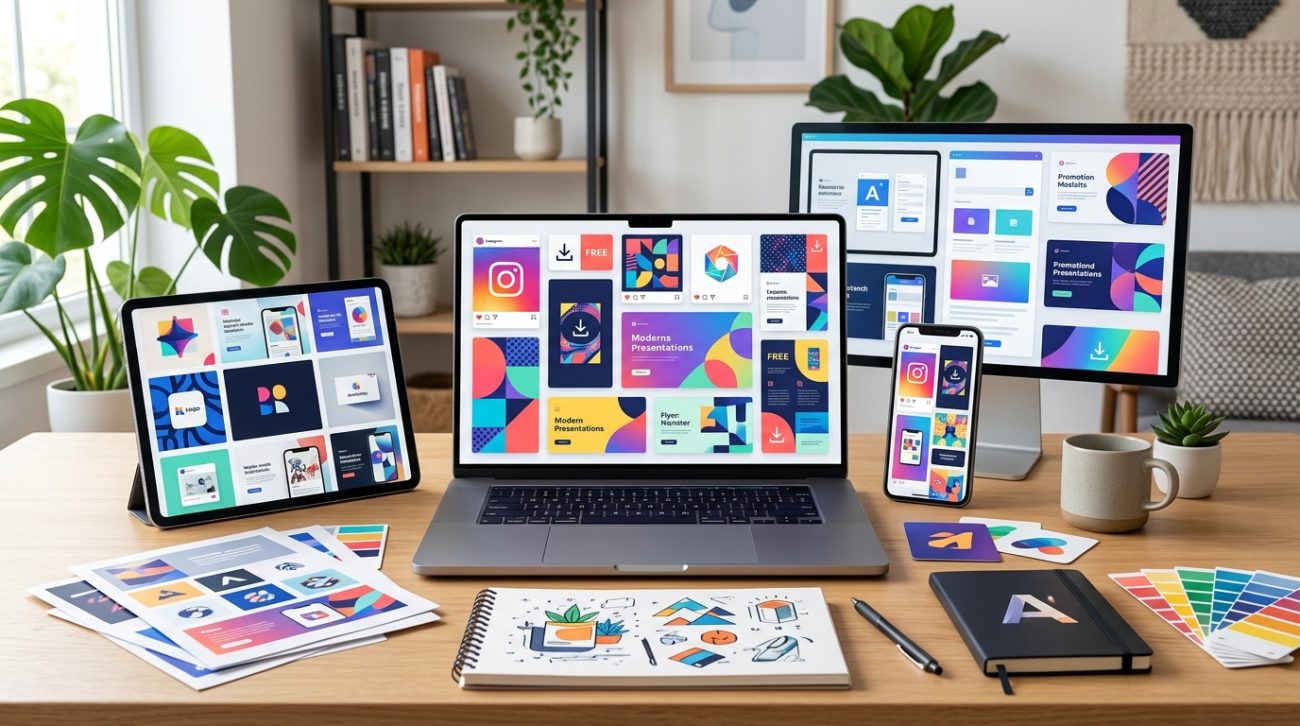
You don’t need a Canva Pro subscription to create stunning graphics. Dozens of free tools offer similar features, from drag-and-drop editors to pre-made templates, all without spending a cent. Whether you’re designing social media posts, presentations, or marketing materials, these alternatives deliver professional results on a shoestring budget.
This guide covers 50 free Canva alternatives that require no subscription fees. You’ll find desktop software, web-based editors, and downloadable template packs. Each option includes practical use cases, file format support, and feature comparisons. Most tools work offline and support commercial projects. Budget-conscious creators can start designing immediately without credit cards or trial periods.
Why paid subscriptions aren’t always necessary
Canva’s free tier limits you to 250,000 templates and basic features. The Pro version costs $120 annually. That’s money better spent on your business.
Free alternatives often match or exceed Canva’s capabilities. Some offer unlimited exports. Others provide advanced features like vector editing or animation tools. Many include commercial licenses by default.
The catch? You might need to learn a new interface. Some tools require downloads instead of browser access. A few display watermarks unless you credit the creator.
But for small business owners and freelancers, these trade-offs beat monthly fees.
Desktop software that works offline
GIMP handles photo editing and graphic design. This open-source tool runs on Windows, Mac, and Linux. You get layers, masks, and filters comparable to Photoshop.
Download size: 200MB. Learning curve: moderate. Best for detailed image manipulation and print projects.
Inkscape specializes in vector graphics. Create logos, icons, and scalable designs. The interface feels familiar if you’ve used Adobe Illustrator.
File formats: SVG, PDF, EPS. Perfect for branding materials that need to scale from business cards to billboards.
Scribus targets desktop publishing. Design brochures, magazines, and multi-page documents. Professional typesetting controls beat most online editors.
Output: print-ready PDFs with CMYK color support. Ideal for physical marketing materials.
Browser-based editors with no installation
Photopea mimics Photoshop’s interface in your browser. Open PSD files directly. Edit photos with adjustment layers and smart objects.
Limitations: ads in the free version. Storage: none, work from your local files. Processing happens client-side, so your images stay private.
Pixlr offers two editors. Pixlr X for simple tasks. Pixlr E for advanced editing. Both run entirely online.
Templates: 2,000+ free options. Formats: JPG, PNG, PXD. Cloud saving requires an account but remains free.
Figma excels at UI design and collaboration. Multiple people can edit the same file simultaneously. Component libraries speed up repetitive work.
Free tier: 3 projects, unlimited collaborators. Export: PNG, JPG, SVG, PDF. Many designers use this as their primary tool.
Template libraries you can download immediately
Freepik hosts millions of free resources. Filter by license type to find fully free options. Download PSDs, vectors, and photos.
Daily limit: 10 downloads for free accounts. Attribution required unless you upgrade. Quality varies but top-rated items rival paid marketplaces.
Vecteezy focuses on vector graphics. Browse by category or style. Most items come in AI and EPS formats.
License: free with attribution or paid for commercial use without credit. Great for logo elements and illustrations.
Unsplash provides high-resolution photos. All images carry a permissive license. Use them in any project, commercial or personal.
Contributors: professional photographers. Search by color, orientation, or keyword. No attribution required but appreciated.
Comparison of key features
| Tool | Platform | Best For | File Formats | Commercial Use |
|---|---|---|---|---|
| GIMP | Desktop | Photo editing | XCF, PNG, JPG | Yes |
| Inkscape | Desktop | Vector graphics | SVG, PDF, EPS | Yes |
| Photopea | Browser | PSD editing | PSD, PNG, JPG | Yes |
| Figma | Browser | UI design | FIG, PNG, SVG | Yes (free tier) |
| Pixlr | Browser | Photo touch-ups | PXD, PNG, JPG | Yes |
How to choose the right tool for your project
Start by identifying your primary need. Photo editing? Choose GIMP or Photopea. Logo design? Inkscape handles vectors better. Social media graphics? Pixlr or Figma work well.
Consider your workflow:
- Check if you need offline access
- Verify file format compatibility with clients
- Test the interface with a simple project
- Confirm the license allows your intended use
Most tools let you try features before committing time to learn them. Spend 15 minutes with each option. Create a simple design. Export it. See which interface feels natural.
“The best design tool is the one you’ll actually use. Don’t chase features you don’t need. Master one program before switching to another.” — Anonymous designer with 10+ years of experience
Template categories that save hours
Pre-made templates cut design time from hours to minutes. Here’s what you’ll find across free platforms:
Social media templates
– Instagram posts and stories
– Facebook covers and ads
– Twitter headers
– LinkedIn banners
– Pinterest pins
Business materials
– Presentation slides
– Business cards
– Letterheads
– Invoice designs
– Email signatures
Marketing assets
– Flyers and posters
– Brochures and catalogs
– Product mockups
– Infographics
– Ad banners
Download templates in editable formats. PSD and AI files preserve layers. SVG files scale without quality loss. PNG files work when you only need to swap text or images.
Common mistakes that waste time and money
Ignoring licensing terms. Free doesn’t always mean unrestricted. Some templates require attribution. Others prohibit commercial use. Read the license before using any resource in client work.
Choosing tools based on features lists. More features don’t equal better results. A simple tool you understand beats a complex one you’ll abandon. Pick software that matches your skill level.
Not backing up project files. Browser-based tools sometimes lose work during crashes. Save copies locally. Export working versions at milestones. Cloud storage adds a safety layer.
Skipping tutorials. Every tool has shortcuts and hidden features. Watch one or two beginner videos. You’ll work faster and produce better designs.
Using too many fonts or colors. Templates look professional because they limit choices. Stick to two or three fonts. Use a defined color palette. Consistency matters more than variety.
Advanced features in free tools
Many free alternatives include professional capabilities:
GIMP supports:
– Layer masks and blending modes
– Custom brushes and patterns
– Batch processing for multiple files
– Plugin ecosystem for specialized tasks
Inkscape provides:
– Path operations and boolean tools
– Text on path and flowing text
– Gradient meshes
– Extensions for technical drawing
Figma includes:
– Auto-layout for responsive designs
– Prototyping with transitions
– Design systems with shared libraries
– Version history and branching
These features let you tackle complex projects without upgrading to paid software.
Building a complete design toolkit
Combine multiple tools for maximum flexibility:
- Primary editor: Choose based on your most common task
- Vector tool: Keep Inkscape installed for logos and icons
- Photo source: Bookmark Unsplash or Pexels
- Template library: Save favorites from Freepik or Vecteezy
- Font resource: Google Fonts offers 1,400+ free typefaces
This combination covers 95% of design scenarios. You’ll rarely need paid alternatives.
Install fonts system-wide so all programs can access them. Create a folder structure for templates organized by project type. Save your custom color palettes for reuse.
Mobile options for designing on the go
Adobe Express (formerly Spark) works on phones and tablets. Create social posts, flyers, and videos. The free tier includes 2GB storage and thousands of templates.
Limitations: Adobe watermark on some exports. Premium features locked behind subscription.
Desygner offers mobile apps for iOS and Android. Drag-and-drop interface optimized for touch. Sync projects across devices.
Free version: basic templates and limited uploads. Paid tier removes restrictions.
Snapseed handles photo editing on mobile. Google’s free app includes healing tools, selective adjustments, and filters. No ads or in-app purchases.
Export: full resolution. Works offline after installation.
Troubleshooting common issues
Fonts look different after export. Embed fonts in PDFs or convert text to outlines in vector files. This prevents substitution when others open your designs.
Colors change between programs. Use consistent color spaces. RGB for digital work, CMYK for print. Convert before final export to avoid surprises.
Files are too large to share. Compress images before importing them into designs. Export at appropriate resolutions (72 DPI for web, 300 DPI for print). Use PNG for graphics with transparency, JPG for photos.
Templates don’t match your brand. Customize colors, fonts, and imagery. Replace placeholder text with your messaging. Adjust layouts to fit your content. Templates are starting points, not final products.
Resources for learning design basics
Free tools work best when you understand design principles:
Typography: Pair fonts from different categories. Use hierarchy to guide attention. Limit line length for readability.
Color theory: Apply the 60-30-10 rule. Choose complementary or analogous schemes. Test contrast for accessibility.
Layout: Follow the rule of thirds. Create visual balance. Use whitespace intentionally.
Composition: Align elements to a grid. Group related items. Create clear focal points.
YouTube channels like The Futur and Flux Academy teach these concepts. Practice by recreating designs you admire. Analyze what makes them effective.
Setting up efficient workflows
Speed comes from repetition and organization. Build these habits:
- Save frequently used elements as reusable components
- Create templates for recurring project types
- Use keyboard shortcuts for common actions
- Keep a swipe file of inspiration organized by category
- Set up project folders with consistent naming conventions
Batch similar tasks. Design all social posts for the week in one session. Edit product photos together. This reduces context switching and maintains visual consistency.
When to consider paid upgrades
Free tools handle most projects. Consider paying when:
- You need priority support for client deadlines
- Collaboration features become essential as your team grows
- Storage limits prevent you from keeping project archives
- Watermarks or attribution requirements conflict with brand guidelines
- Time saved by premium features justifies the cost
Many designers run successful businesses using only free tools. Upgrade based on specific needs, not assumptions about what professionals should use.
Your design journey starts here
Free Canva alternatives give you everything needed to create professional graphics. Start with one tool that matches your primary need. Learn its core features through practice. Add complementary tools as projects demand them.
The software matters less than your willingness to experiment and improve. Download a few options today. Create something. Share it. Refine your approach based on feedback. Your budget doesn’t limit your creativity.
