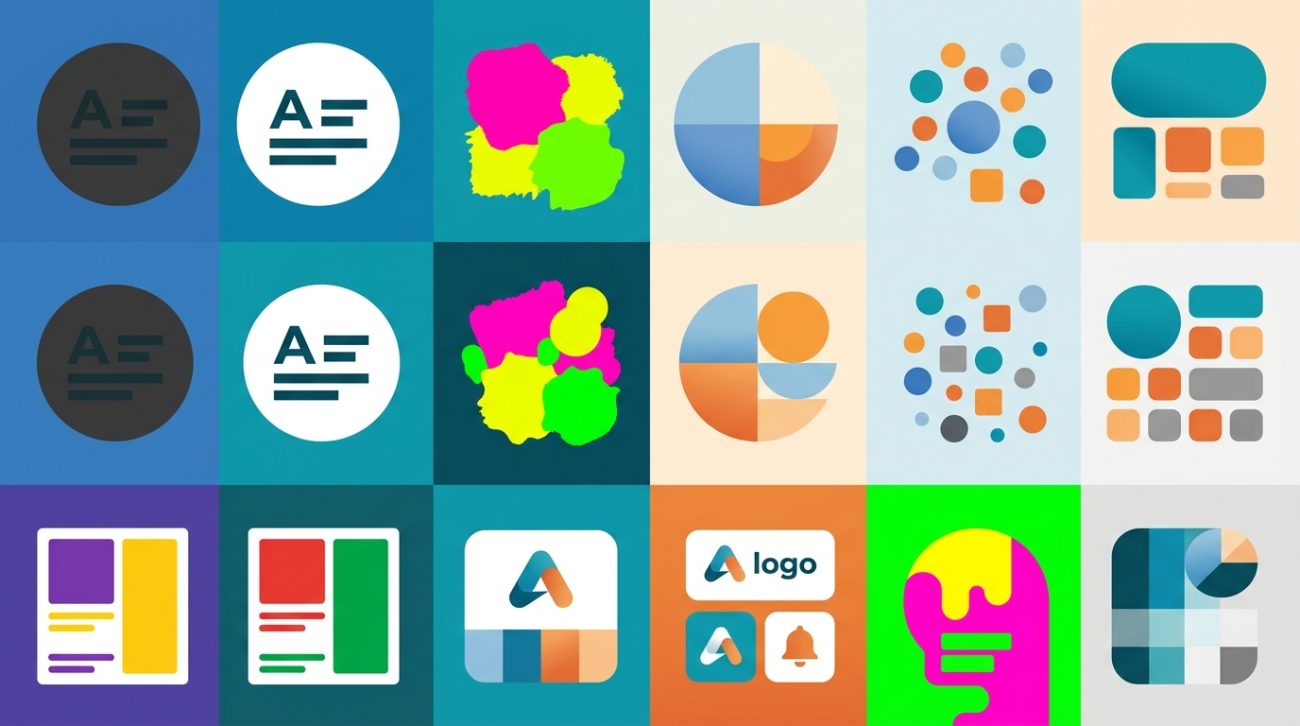
You pick a color palette you love, apply it to your design, and something feels off. The colors clash. The text is hard to read. The whole thing looks muddy or chaotic.
This happens to every beginner. Color is one of the trickiest parts of design because it involves both technical rules and visual intuition. But the good news? Most color problems fall into five predictable categories, and once you know what to look for, they’re easy to fix.
Beginners often struggle with contrast, saturation overload, ignoring color context, poor palette balance, and mixing incompatible color modes. Each mistake has a straightforward fix involving testing, limiting choices, understanding relationships, and using proper tools. Mastering these fundamentals transforms chaotic designs into polished, professional work that communicates clearly and looks intentional across all platforms.
Using colors with poor contrast
The number one mistake beginners make is choosing colors that don’t have enough contrast between elements.
This shows up everywhere. Light gray text on white backgrounds. Pastel buttons on pastel pages. Dark blue links on black navigation bars.
Your eyes might adjust to it on your bright monitor, but other people won’t see it the same way. Phones in sunlight, older screens, people with visual impairments, they all need stronger contrast to read your work.
How to fix contrast problems
Start by testing your color combinations with a contrast checker. WebAIM’s tool is free and shows you exactly whether your text meets accessibility standards.
Aim for a contrast ratio of at least 4.5:1 for normal text and 3:1 for large text. This isn’t just about accessibility compliance. It makes your designs easier to read for everyone.
Here’s a simple test. Take a screenshot of your design and convert it to grayscale. If elements blend together or disappear, you have a contrast problem.
When in doubt, go darker or lighter than you think you need to. Subtlety is great for experienced designers who know the rules. Beginners should prioritize clarity first.
For more guidance on making accessible choices, check out how to build an accessible color palette without sacrificing style.
Overloading designs with too many saturated colors
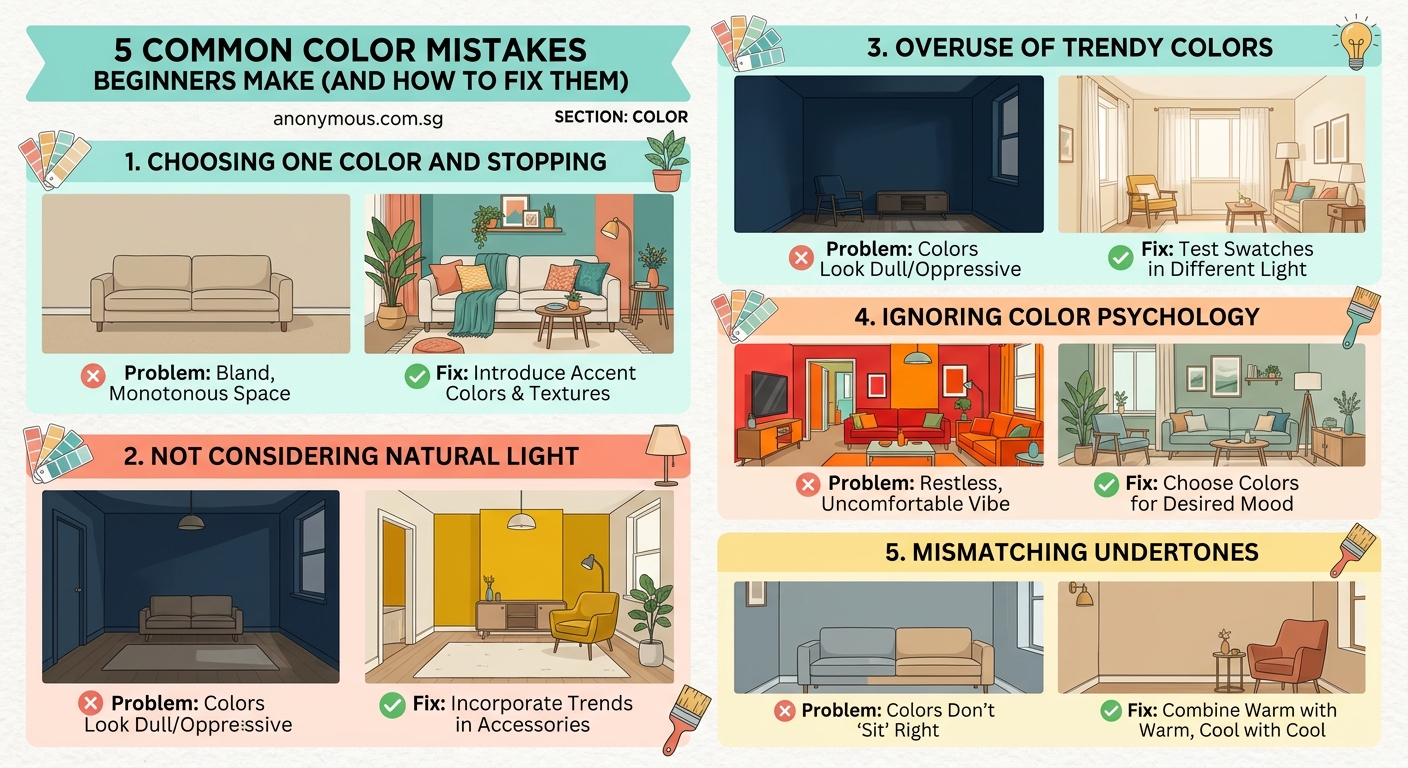
Bright, fully saturated colors feel exciting. They grab attention. So beginners often use them everywhere, thinking more vibrancy equals better design.
The result? Visual chaos. When every element screams for attention, nothing stands out. The design feels exhausting to look at.
Saturation is like volume. A little goes a long way. Too much becomes noise.
How to balance saturation
Use the 60-30-10 rule as your foundation. Sixty percent of your design should use a neutral or low-saturation color. Thirty percent uses a secondary color with moderate saturation. Ten percent is your accent color, which can be fully saturated.
This creates hierarchy. The saturated accent draws the eye exactly where you want it.
Another approach is to desaturate your entire palette slightly. Instead of pure, vibrant hues straight from the color picker, dial them back by 10-20%. This creates a more sophisticated, cohesive look.
Think of it like seasoning food. You can always add more, but you can’t take it away once it’s overdone.
The 60-30-10 color rule breaks down this principle with visual examples you can apply immediately.
Ignoring how colors interact with each other
Colors don’t exist in isolation. They change based on what’s around them.
Put a medium gray next to white, and it looks dark. Put the same gray next to black, and it looks light. This is called simultaneous contrast, and beginners often ignore it.
You might pick colors that look perfect in your palette generator, then wonder why they look completely different in your actual design.
Understanding color relationships
Here’s what happens. Warm colors (reds, oranges, yellows) advance visually. They feel closer and more energetic. Cool colors (blues, greens, purples) recede. They feel calmer and further away.
When you place warm and cool colors next to each other, they intensify each other. A red button on a blue background will look more vibrant than the same red on a gray background.
Complementary colors (opposites on the color wheel) create the strongest contrast. They vibrate when placed side by side. This can be powerful for calls to action, but overwhelming for large areas.
Analogous colors (neighbors on the color wheel) create harmony. They’re easier to work with but can lack visual interest if you don’t vary the saturation and brightness.
| Color Relationship | Effect | Best Used For |
|---|---|---|
| Complementary | High contrast, vibrant | Buttons, important alerts |
| Analogous | Harmonious, calm | Backgrounds, gradients |
| Triadic | Balanced, dynamic | Full palettes with variety |
| Monochromatic | Unified, sophisticated | Minimalist designs |
Test your colors in context. Don’t just look at swatches. Apply them to actual elements and see how they interact.
For deeper understanding of temperature effects, read about warm vs cool colors and when to use each.
Choosing colors without considering the full palette
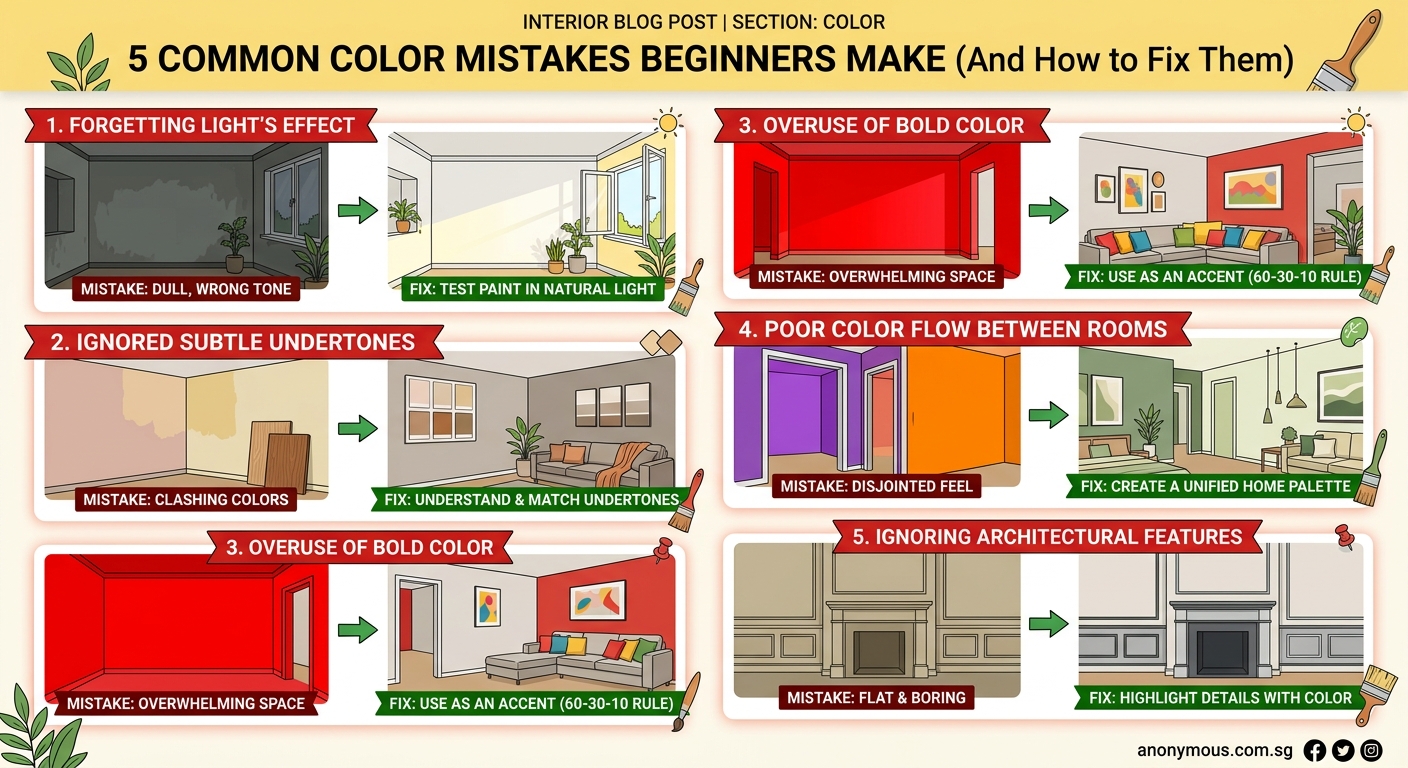
Beginners often pick one color they love, then randomly add others without thinking about how they work together as a system.
You end up with a collection of nice colors that don’t form a cohesive palette. The design feels disjointed, like different pieces from different puzzles forced together.
Building a balanced palette
Start with one or two main colors that reflect your project’s purpose. Then build around them systematically.
Here’s a practical process:
- Choose your primary color based on the emotion or message you want to convey.
- Select a neutral (white, black, gray, or beige) that will cover 60% of your design.
- Add one complementary or analogous color as your secondary.
- Pick an accent color that contrasts with your primary for calls to action.
- Create lighter and darker variations of each color for depth.
This gives you a working palette of 8-12 colors that all relate to each other logically.
Use a tool like Coolors or Adobe Color to generate variations. These tools help you see relationships and maintain consistency.
“A good color palette isn’t about having beautiful colors. It’s about having colors that work together to create hierarchy, guide attention, and support your message.” – Ellen Lupton, designer and educator
Don’t add colors just because you like them. Every color should have a job. If you can’t explain why a color is there, remove it.
The guide on how to create a cohesive brand color palette that works across print and digital walks through this process with examples.
Mixing RGB and CMYK without understanding the difference
This mistake shows up when you’re working across digital and print. You pick colors that look perfect on screen, send them to print, and they come back completely different.
The reason? RGB (red, green, blue) and CMYK (cyan, magenta, yellow, black) are different color modes for different outputs.
RGB is for screens. It uses light to create colors. CMYK is for printing. It uses ink.
Many vibrant RGB colors simply can’t be reproduced in CMYK. That bright electric blue you love might turn muddy purple when printed.
How to handle color modes correctly
If your design will be printed, work in CMYK from the start. Don’t design in RGB and convert later. The conversion will shift your colors, and you’ll waste time adjusting everything.
If you must start in RGB (maybe you’re working with web assets first), check your colors in CMYK view before finalizing anything. Most design software lets you preview CMYK without actually converting the file.
Look for colors that fall outside the CMYK gamut. Your software will usually flag these. When you find one, adjust it slightly until it falls within printable range.
For digital-only work, stick with RGB. It gives you a wider range of colors and matches what people will actually see.
For projects that need both, create two versions. Save one as RGB for web and one as CMYK for print. Document the exact color values for each so you can maintain consistency.
| Aspect | RGB | CMYK |
|---|---|---|
| Used for | Screens, web, digital | Print, physical materials |
| Color range | Wider, more vibrant | Narrower, more muted |
| How it works | Additive (light) | Subtractive (ink) |
| File formats | PNG, JPG, GIF | PDF, EPS, TIFF |
Understanding this prevents the frustration of colors that look great on screen but fail in print. The article on CMYK vs RGB and when to use each color mode covers this in detail.
Additional mistakes that trip up beginners
Beyond the big five, a few other color issues appear frequently in beginner work.
Not testing colors on different screens
Your laptop screen might be calibrated differently than your phone, your client’s monitor, or a projector. Colors shift across devices.
Always check your work on multiple screens before calling it done. Look at it on your phone. View it on a different computer if possible. This reveals problems you might miss on your primary display.
Forgetting about color psychology
Colors carry meaning. Red signals urgency or danger in many cultures. Blue feels trustworthy and calm. Green connects to nature and growth.
Using colors that contradict your message confuses viewers. A meditation app with aggressive red accents sends mixed signals. A financial services brand with neon yellow might feel unprofessional.
Research basic color psychology for your industry. You don’t need to follow it rigidly, but you should make informed choices.
The psychology behind color meanings explains how different audiences interpret colors.
Relying on color alone to convey information
Never use color as the only way to communicate something important. Some people are colorblind. Others might print your design in grayscale.
If your chart uses only color to distinguish data, add patterns or labels. If your form uses red text to show errors, also add an icon or message.
This makes your design more accessible and more robust across different viewing conditions.
Tools that help you avoid color mistakes
You don’t have to rely on your eye alone. Several free tools catch color problems before they become issues.
Contrast checkers like WebAIM or Stark plugin show you exactly whether your text meets readability standards. Paste in your colors and get instant feedback.
Palette generators like Coolors, Adobe Color, or 7 free color palette generators every designer should bookmark help you build harmonious combinations based on color theory rules.
Color blindness simulators like Coblis or Color Oracle show you how your design looks to people with different types of color vision deficiency.
Gamut checkers in software like Photoshop or Illustrator flag colors that won’t print correctly in CMYK.
Use these tools as part of your workflow, not as an afterthought. Check contrast while you’re choosing colors, not after you’ve applied them everywhere.
Practical exercises to improve your color skills
Reading about color helps. Practicing helps more.
Try these exercises:
Monochrome challenge. Design something using only one hue at different saturations and brightness levels. This teaches you how much variety you can get from a single color.
Palette extraction. Find a photo you love and pull 5-6 colors from it using a color picker. Use only those colors in a design. This shows you how nature creates balanced palettes.
Contrast audit. Take an existing design (yours or someone else’s) and run every text/background combination through a contrast checker. Note which ones fail and why.
Color swap. Take one of your designs and completely change the color palette while keeping everything else the same. See how different color choices change the feeling and message.
These exercises build your intuition faster than theory alone.
When to break the rules
Once you understand these common mistakes and how to avoid them, you can start breaking the rules intentionally.
High-saturation designs work for certain brands. Low-contrast can create sophisticated, subtle effects. Clashing colors might be exactly what an edgy poster needs.
The difference between a beginner mistake and an advanced technique is intention. Beginners break rules because they don’t know them. Experienced designers break rules because they know exactly what effect they’re creating.
Master the fundamentals first. Then experiment.
Building better color habits
Avoiding these mistakes isn’t about following rigid formulas. It’s about developing good habits that become second nature.
Start every project by defining your color strategy. What’s the main message? Who’s the audience? Where will this appear? These questions guide your color choices.
Test early and often. Don’t wait until everything is designed to check contrast or view your work on different screens.
Build a reference library. Save palettes you like. Screenshot designs with great color use. Study what makes them work.
Stay curious. Color theory has depth, but you don’t need to master everything at once. Learn one concept, apply it, then move to the next.
The mistakes covered here are the ones that affect almost every beginner. Fix these, and your designs will immediately look more professional and intentional. Your colors will support your message instead of fighting against it.
Remember that even experienced designers still check their work, test their choices, and sometimes get it wrong. The goal isn’t perfection. It’s progress and awareness.
Start with one fix. Maybe that’s checking contrast on your next project. Or limiting yourself to three colors instead of seven. Small improvements compound into major skill gains.
Your color sense will develop with practice. These guidelines give you a framework to work within while you build that intuition. Use them, trust them, and watch your designs improve.
